How I sped up internet on my Mac
In the previous post, I wrote about diagnosing why my Mac could connect to my phone hotspot and still refuse to load pages.
By the end of that, I had run a few temporary command-line fixes to get myself out of a tight spot. But to be honest, I didn’t actually understand what was happening under the hood. I was just a desperate guy who wanted his Cliq messages to send. However, I wanted to measure the changes properly to understand what actually made the internet feel usable again.
And that was when I hit my first roadblock: I didn’t even know what metrics to look for. I thought speed was just the Mbps download number. After all, if a speedtest website showed a big number, the connection was good. And if it didn’t, it was bad. Simple math.
But as I started digging into how to test this with Zuri, I realised that Mbps is a terrible way to measure how snappy a connection actually feels. A connection can show a massive download number and still feel completely broken if your packets are dropping, your DNS lookup is sluggish, or your latency spikes the moment you open a few heavy tabs.
So I stopped looking at raw speed and started looking at network responsiveness.
To get some real data, I had to clean up my tools once again. I tried running a speed test from my terminal, but macOS kept invoking an old, Python-based speedtest-cli script I must have installed years ago. As it turns out, that old script is fundamentally different from the actual binary. Because it is written in Python, on faster connections it can actually become CPU-bound and artificially cap your reported speeds. It also relies on outdated server registries that modern endpoints frequently block or rate-limit, and crucially, it only measures idle ping. It has no idea what happens to your latency when the network is actually working.
So I did some research and opted for the official Ookla binary instead — a native, compiled tool that has access to proper server routing and can measure latency under load. It gives a much cleaner, raw breakdown of speed, ping, and jitter.
Updating it through Homebrew was straightforward:
brew tap teamookla/speedtest
brew install speedtest
Homebrew complained that the old Python script was still hogging the command name, so I unlinked it and linked the official binary:
brew unlink speedtest-cli
brew link speedtest
With the proper tool installed, I could finally see the numbers behind the tweaks.
The first thing I learned was why fixing my MTU (Maximum Transmission Unit) back in the previous post made such a massive difference. When my MTU was at the default 1500 on Airtel, my packet loss was sitting around 9.2%. Once I locked the MTU to 1280 — which is the safe minimum for mobile carrier networks that wrap your packets in extra protocol headers — the packet loss dropped to exactly 0%.
And just like that, my laptop stopped losing nearly a tenth of its data in transit. A stable 40 Mbps connection with zero packet loss feels infinitely snappier than a 150 Mbps connection where every tenth page request stalls because of dropped packets.
DNS was the second place where the connection was wasting time. Hardcoding Google DNS (8.8.8.8) was a start, but I wanted to see if another public resolver would be faster. I ran dig with stats against Google, Cloudflare, and Quad9. On Airtel, Cloudflare actually timed out during my tests, and Quad9 was sluggish. Google DNS was the clear winner, resolving lookups in about 20ms.
Once the MTU was locked and the DNS was sorted, the speedtest CLI finally painted a stable picture:
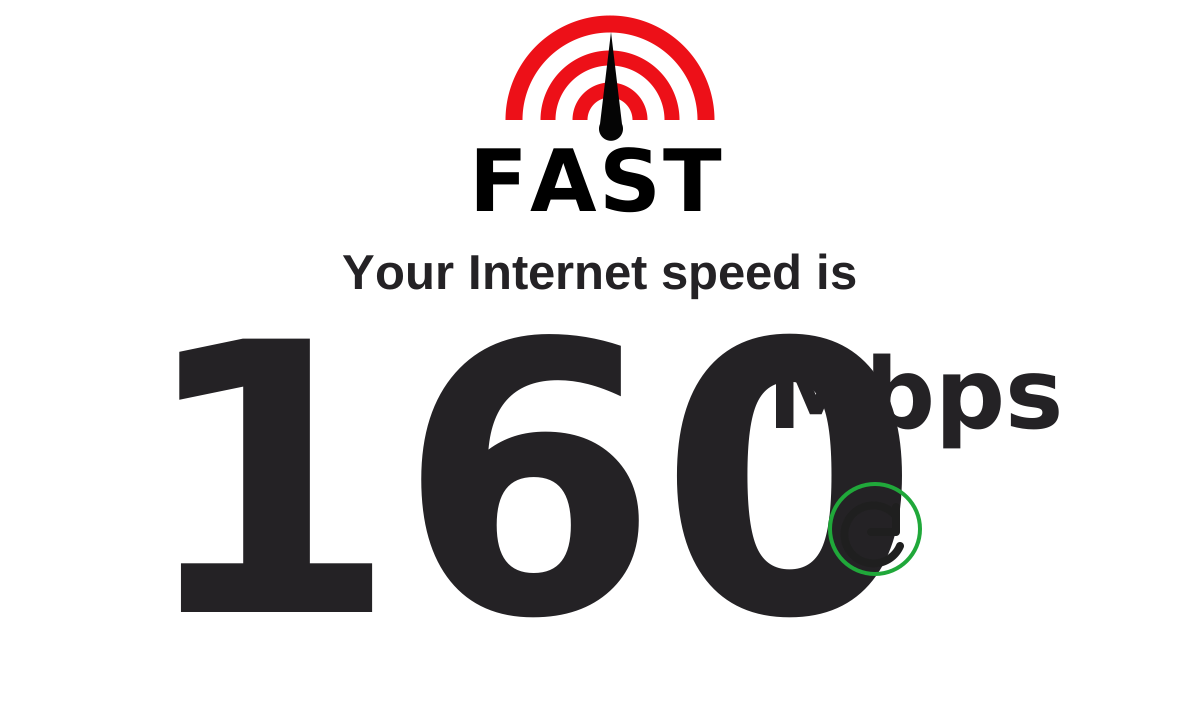
speedtestThe test came back showing a clean 160 Mbps download speed, which I also confirmed with Fast
Since I didn’t capture a clean pre-fix Airtel speed test, the stronger proof is still stability: packet loss went from 9.2% to 0%.
But Zuri insisted that the final metric was loaded latency, so we kept going. I checked my responsiveness under load using Apple’s built-in network quality tool:
networkQuality -vThis is where I learned about bufferbloat (how sluggish your connection gets when you actually start downloading or uploading something). Even with packet loss at 0% and DNS lookups at 20ms, the loaded latency on a cellular connection can still spike dramatically.
It makes sense — mobile towers are shared, wireless signals are prone to environmental jitter, and carriers use aggressive queueing behaviours. I managed to fix my packet loss and make browsing stable, but I couldn’t magically change the physics of cellular towers.
To manage that bufferbloat during my focus sprints, I’ll have to adapt my habits — pause background cloud syncs (Google Drive and OneDrive are notorious for hogging bandwidth), avoid running large package updates while on calls, and keep my workspace as quiet as possible when I need to record a demo.
Zuri also suggested that I could try USB tethering to avoid the Wi-Fi hop entirely. I haven’t switched to that permanently — wireless is just more convenient — but it’s a useful suggestion to keep in mind if I ever need to shave off those extra few milliseconds of wireless jitter.
Ultimately, spending my days fighting network disconnects is both a technical annoyance, and a direct threat to getting anything done, so I’m glad about the progress, beyond learning something new.
I didn’t become a network engineer overnight, but doing this taught me to stop chasing placebo fixes. Now, when my network feels sluggish, I know not to simply stare at the Mbps download bars. I’ll look at packet loss and responsiveness, and I hope you’ll do the same, too.